Single Subjects User Participation Report
Overview
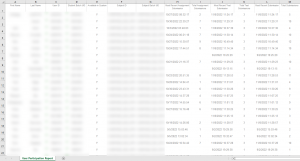
The Single Subjects User Participation Report generates an Excel file with a summary of student submissions and collaboration items in the vUWS site. The report generates the data from submissions in the Blackboard tests, assignments, discussion boards, blogs and journals but does not include 3rd party tools such as Turnitin. The report has two distinct features: most recent Submission and total Submission for each of these tools.
Examples of questions that this report can answer include:
- What and when was the last assignment submission by a student?
- What are the submission patterns of students within my cohort?
How do I use the report?
Access the report
Access the Single Subjects User Participation Report in your vUWS site by scrolling down to the Subject Management section in the navigation menu, then selecting Student Tracking and Subject Reports .
A list of available reports will display, the third report in the list should be the Single Subjects User Participation Report report. Hover your mouse cursor over the report heading text then click on the chevron menu icon that appears and select Run.
A new page will load where you are required to input the parameters of the report including:
- Start Date : The date that you want to examine the access data from (Must not be over 180 days from the data of the report run – see note below)
- End Date : The data that you want to access the data to.
Note: The report only retains 180 days of historical data. This means that you cannot view data older than 180 days and the selection of dates should be within the 180 days range from the date of the report run.
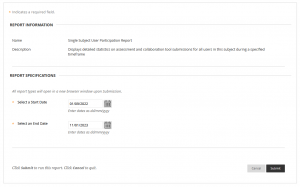
Once you are satisfied with you parameters, click on the Submit button down the bottom right of the page.
The report will be generated. Click on the Download Report link to access the generated Excel file. You also have the option to save the report for later using the Save to Content Collection or Download Report links.
Using the Interface and viewing Data
The report generates an Excel file containing the data. It has two distinct features for each student: most recent Submission and total Submissions of the submission types within the vUWS site. Using Excel, it is possible to manipulate the data, perform further analysis and identify patterns and features in the data.