
SCORM Reports
Overview
The Shareable content object reference model (SCORM) Reports in vUWS displays data on the completion rate, time spent and responses to the quiz questions within the SCORM packages.
Examples of questions that this dashboard can answer include:
- How long did a student spend in the SCORM package?
- What responses did a student give to the quiz questions?
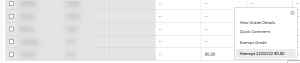
Note: This data is available in the Grade Centre. By locating the grade column associated with the SCORM package and clicking on an individuals attempt, the same data is displayed. See the screenshots below.
How do I use the report?
Access the report
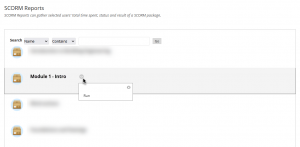
Access the SCORM Reports in your vUWS site by scrolling down to the Subject Management section in the navigation menu, then selecting Student Tracking and SCORM Reports .
A list of deployed SCORM packages will display. It is possible to run the report on any of these SCORM Packages. Hover your mouse cursor over the text of the SCORM Package you wish to run the report on, then click on the chevron menu icon that appears and select Run .
Using the Interface and viewing Data
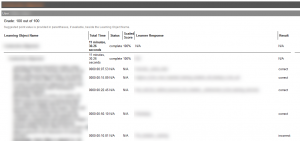
The report groups the data by individual student. For each student, a table of data exists which includes:
- Learning Object Name: The SCORM package name and any gradable activities within it
- Total Time: The total time spent in the SCORM package and for each gradable activity
- Status: The completion status
- Scaled Score: The score achieved by the student as a percentage
- Learner Response: The student response for relevant activities
Limitations of reporting
As with all reports, there are some limitations with the SCORM report. Most notably:
- Not all the activities from within a SCORM package will be displayed in the report. Only the activities which are set as to track/report back to the learning management system.
- The data cannot be exported into alternate formats. The only format available is the output in an HTML page.
