
Performance Dashboard
Overview
The Performance Dashboard is almost a one stop shop for understanding a student’s activities in vUWS. It represents student’s last access date, days since last course access, discussion board posts, the link to Grade Centre and the risk parameters activated in Retention Centre
Examples of questions that this dashboard can answer include:
- What is the activity of a student across my vUWS site?
- What items on my vUWS site can a particular student see?
- How has a particular student engaged in the Discussion Boards?
How do I use the report?
Access the report
Access the Performance Dashboard in your vUWS site by scrolling down to the Subject Management section in the navigation menu, then selecting Student Tracking and Performance Dashboard .
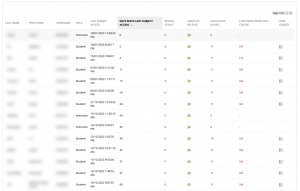
A list of students in your cohort will be displayed in a matrix of information and links. This is the Performance Dashboard.
Using the Interface and viewing Data
The main dashboard provides an overview of each student with links you can click on to drill down further into the data or examine a particular students activity in another reporting tools. Below is a list of the columns available and what each column provides:
1. Last subject access
The last date and time that the individual student last accessed your subject vUWS site.
2. Days since last subject access
The number of days since the last date that the individual student last accessed your subject vUWS site.
3. Review status
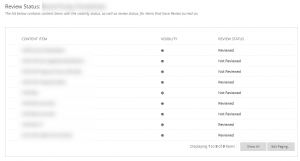
Displays how many items have been marked as Reviewed by the student. This relies on individual items on your vUWS site having the Review Status enabled. If the review status tool hasn’t been enabled for your course, this column doesn’t appear. For more information on using the Review Status feature, please use the links below.
For a detailed view, click on the number shown for the student. This will show you a list of items on the vUWS site that have the review status enabled and indicate whether or not the student has marked that item as reviewed.
4. Adaptive release
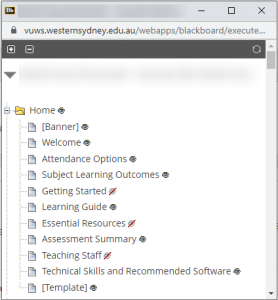
Displayed only if adaptive release is enabled in your course. Select the icon to open a new window that shows a directory tree overview of the entire course relative to a user and the access status for that individual.
5. Discussion board
This column indicates the number of Discussion Board Forums that the student has posted in.
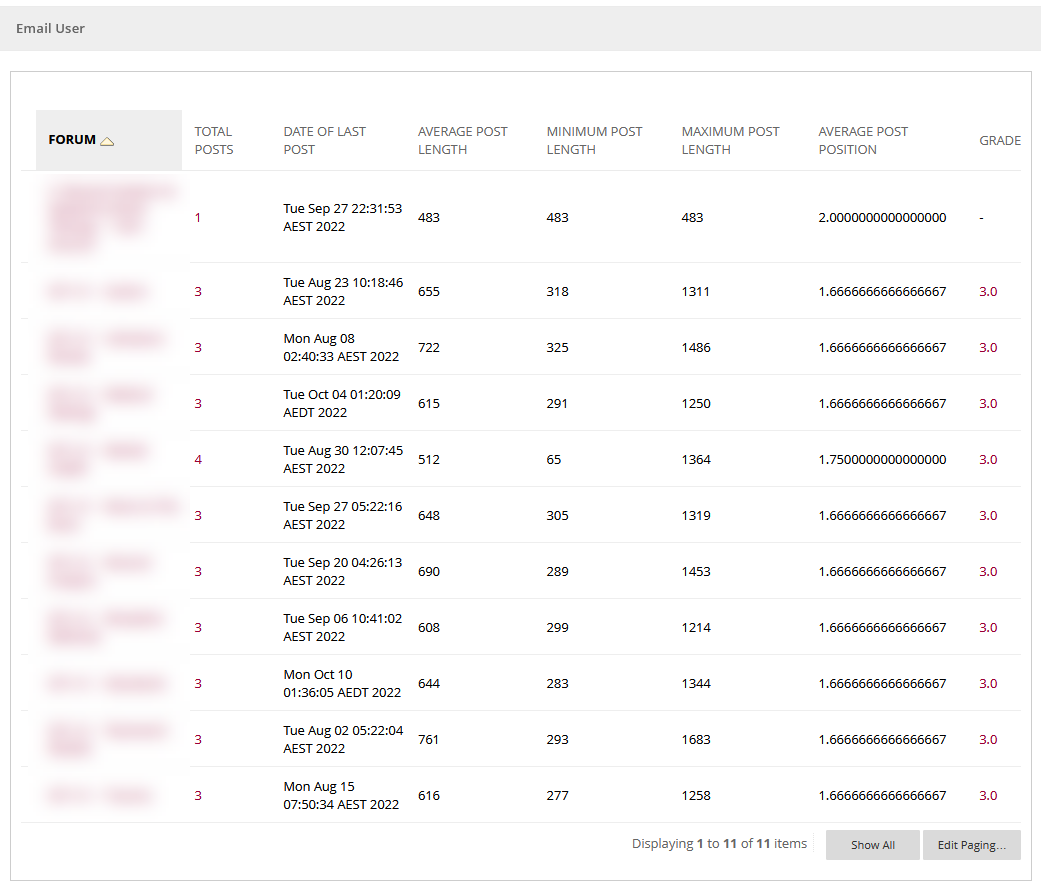
Clicking onto the number will show a breakdown of the student activity within the forum. This includes:
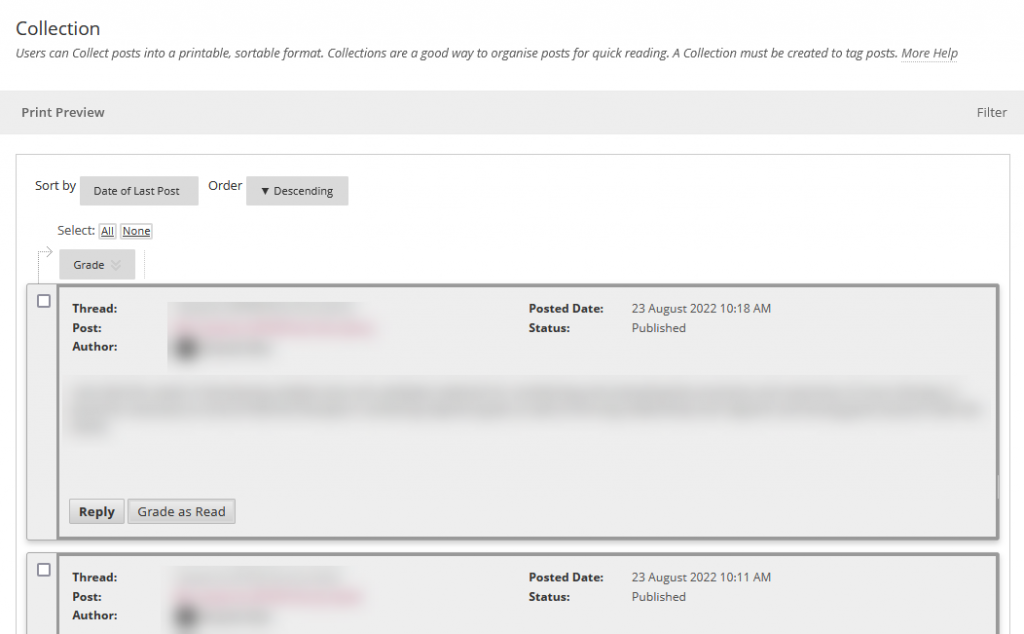
- Forum: The name of the forum on the vUWS site. It is possible to click onto the name of the forum to drill down further into this data and view the collection of posts the student made into this forum
- Total posts: The total number of posts within that forum by the student
- Date of last post: The date and time of the student’s last post
- Average post length: The average length, measured in the number of characters, of the posts made in that forum
- Minimum post length: The shortest post, measured in the number of characters, of the posts made in that forum
- Maximum post length: The longest post, measured in the number of characters, of the posts made in that forum
- Average post position: Within a Discussion Board Thread, the average post position. For example, if 2 students have posted already and a student posts next, this would be the third post position.
- Grade: If the Discussion Board has grading assigned to it, this is the grade the student received. Clicking onto the grade will take you to the Grade Centre.
It is also possible to email the student from this screen, should you have concerns and want to contact the student. Click on the “Email User” button up the top left to access the email form.
6. Customise Retention Centre
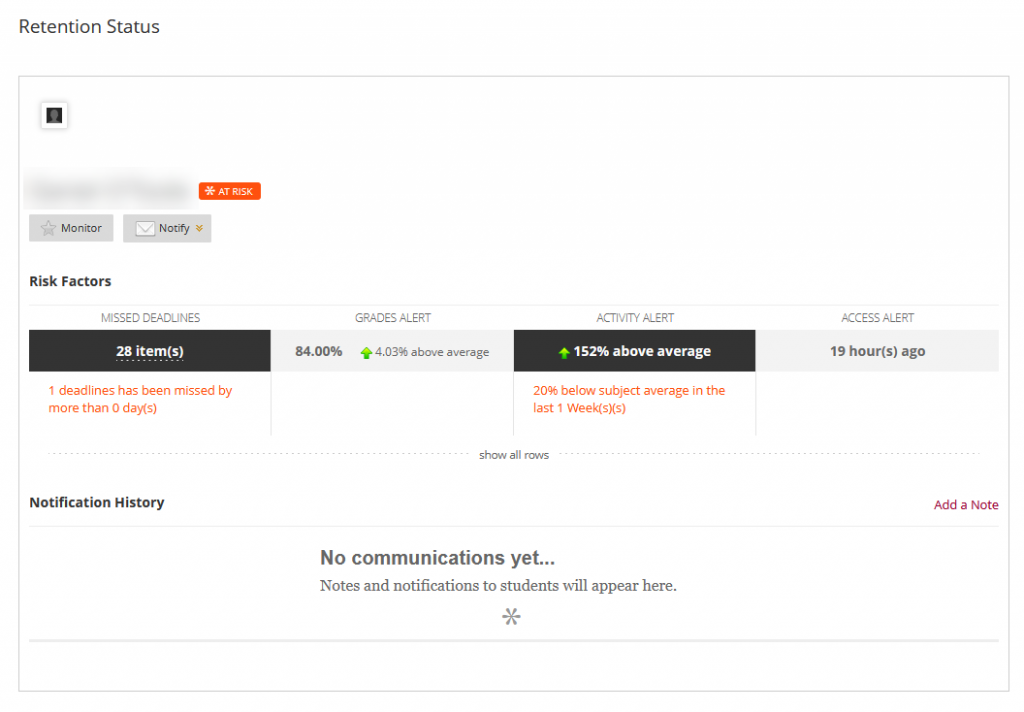
This column shows the number of triggered rules and the number of total rules that may trigger a warning. For example, 2/6 means a user has triggered 2 rules out of 6 total.
Note: In the Performance Dashboard is the hyphen (-) in the Retention Centre column. These students are no longer available in the unit, so use your judgement about whether to include these students in your analysis.
Click onto the data in this column to display the Retention status for the user. The Retention status will enable you to see a breakdown of the rules triggered and any notes or communication that has been sent to the student via the Retention Centre. You are also able to select this student to monitor them in the Retention Centre and send them an email from within the tool.
7. View Grades
This column provides you with a direct link to the Full Grade Centre.
